


Editorially Independent: We may earn a commission from links on this page, at no extra cost to you. Our conclusions and analysis are always our own.
In the Make.com vs Zapier debate, Zapier’s linear workflows and task-based pricing model often become a bottleneck for professionals scaling their operations. The problem is not a lack of power; it is a lack of visibility and cost-efficiency when building complex, multi-step systems required for a true content automation workflow. As automations become more sophisticated, the simple A-to-B connections that define Zapier quickly become restrictive and expensive.
This guide moves beyond a simple feature comparison to provide a strategic blueprint for engineering a scalable AI content engine with Make.com. For teams scaling search traffic, these automation systems pair especially well with modern AI SEO tools and AI writing platforms built for high-volume publishing workflows.
What Are Make.com and Zapier?
Before diving into our workflow, let’s establish a clear baseline. Both Make.com and Zapier are leaders in the no-code automation space, allowing you to connect different web applications to automate tasks without writing a single line of code.
Zapier is the market’s most well-known automation tool, pioneering the “if this, then that” (IFTTT) model with a simple, text-based interface. It excels at creating straightforward, linear automations between thousands of apps.
Make.com (formerly Integromat) is a powerful visual automation platform. Instead of a linear list, it provides a drag-and-drop canvas where you can build, see, and debug complex, multi-path workflows, making it the superior Zapier alternative for building intricate systems.
Make.com’s visual workflow builder gives content teams more flexibility when scaling multi-step AI automation systems.
Make.com vs Zapier: The 4 Key Differences
While both platforms connect applications, their underlying philosophies on workflow design, logic, and pricing are fundamentally different. Understanding these distinctions is the key to choosing the right tool for the long term. The debate over Make vs Zapier pricing in particular is often the deciding factor for professionals scaling their operations, a point of contention that also defined the classic Integromat vs Zapier matchup.
Here is a direct comparison of the criteria that matter most for building a true content automation workflow.
| Feature / Criteria | Make.com (The Visual Platform) | Zapier (The Linear Connector) |
|---|---|---|
| Pricing Model | Operations-based. More efficient and cost-effective for multi-step workflows, as you are not penalized for adding more steps. | Task-based. Can become extremely expensive for complex automations, as every single action in a workflow counts as a paid task. |
| Visual Workflow | Yes. A full drag-and-drop canvas allows you to see your entire system, including branches and logic, at a glance. | No. A simple, text-based linear editor that lists triggers and actions sequentially, making complex systems difficult to visualize. |
| Complex Logic | Built-in & standard. Routers, iterators, and error handlers are standard features, allowing for powerful branching logic out of the box. | Premium tier feature. True branching logic (“Paths”) is locked behind their more expensive professional plans. |
| Free Tier | Superior. A generous 1,000 operations/month, making it the best Zapier alternative free of charge for building and testing real workflows. | Limited. A restrictive 100 tasks/month, which is often insufficient for anything beyond the most basic, low-volume connections. |
Make.com (The Visual Platform)
Pricing Model
Operations-based; efficient for multi-step workflows.
Visual Workflow
Full drag-and-drop canvas with branches & logic.
Complex Logic
Routers, iterators, error handlers built-in.
Free Tier
1,000 operations/month.
Zapier (The Linear Connector)
Pricing Model
Task-based; each action is a paid task.
Visual Workflow
Text-based linear editor; harder to visualize.
Complex Logic
Paths behind higher-tier plans.
Free Tier
100 tasks/month.
The Strategic Takeaway: Zapier is excellent for simple, set-it-and-forget-it connections. Make.com is the superior platform for anyone who needs to build, visualize, and scale complex, mission-critical systems. That is exactly what we will do next.
Recommended AI Content Automation Stack (2026)
Lean AI Publishing Stack
Use OpenAI for AI content generation, Grammarly for editing, Make.com for workflow automation, and WordPress for publishing. This lightweight stack is ideal for bloggers, affiliate marketers, and solo creators scaling content production efficiently.
SEO Content Operations Stack
Use Make.com to connect OpenAI, Surfer SEO, and Scalenut into a streamlined optimization workflow. This stack helps SEO teams automate drafting, refinement, optimization, and publishing while maintaining stronger search consistency across large content libraries.
Automated Social Distribution Stack
Use Make.com to transform long-form content into social assets, then distribute them through Ocoya across X, LinkedIn, Facebook, and Reddit. This dramatically reduces manual scheduling overhead for content marketing teams.
The “Content Agency of One” Blueprint
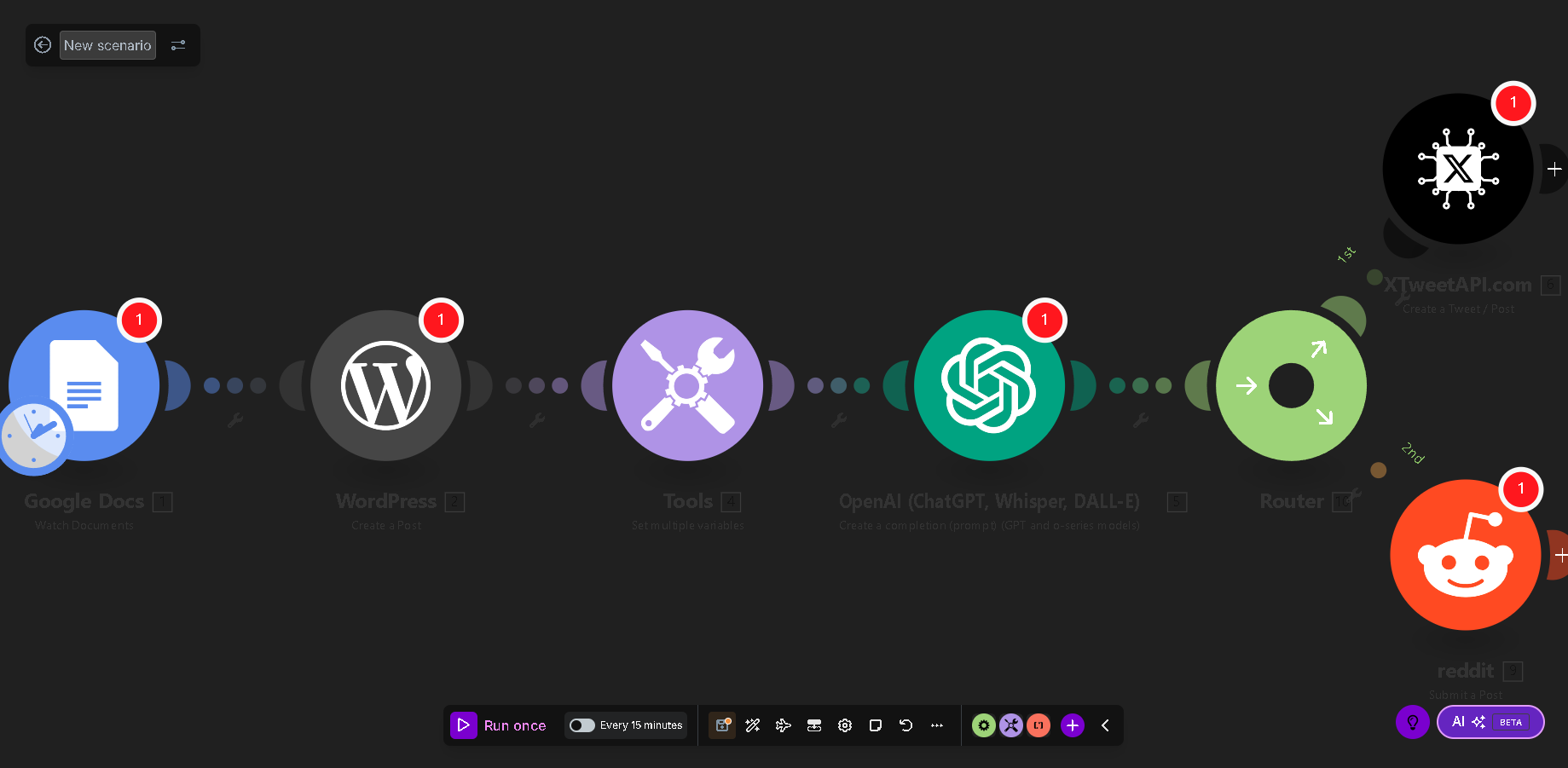
This is where we demonstrate the power of a true visual workflow. We will now build the exact system that allows you to automate content creation from draft to distribution. This is more than a Make.com tutorial; it is the framework for a self-operating content machine that showcases why a visual canvas is superior for building a true AI content workflow.
Step 1: The Draft Engine (Google Docs → WordPress)
First, we build the core publishing pipeline. This step eliminates the copy-paste busywork of content management.
- Activate the Scenario. Now, every new document saved in your Google Docs folder will instantly appear as a draft in WordPress.
- Log into Make.com and create a new “Scenario.”
- Click the large plus icon to add the Google Docs module. Select the trigger
Watch Documentsand connect it to a specific folder where you save your final drafts. - Add the WordPress module. Connect your site and choose the action
Create a Post. - Map the fields from the Google Doc to the corresponding fields in WordPress (e.g.,
Title→Post Title,Content→Post Content).

Step 2: The AI Content Engine (Leveraging OpenAI Automation)
Next, we inject intelligence into the workflow. A best practice in complex automation is to define your prompts as clean variables first. This makes your workflow easier to manage and debug. We will use a simple “Tools” module for this.
- Insert a “Router” module after the WordPress module.
- On a new path, add the purple “Tools” module and select
Set multiple variables. - In the settings panel, define the variables for the AI assets you need. For example:
- Variable Name:
Meta Description Prompt - Variable Value:
Generate a concise, 150-character meta description for the following article: [Article Content]
- Variable Name:
- The screenshot below shows exactly how to set this up.

Now, add the OpenAI (GPT-5) module after the “Tools” module. In its settings, instead of writing a long prompt, you simply map the clean variable (e.g., Meta Description Prompt) into its prompt field.
Step 3: The Distribution Engine (Hands-Free Social Scheduling)
With our AI-generated assets ready, the final step is to schedule them for distribution.
- Connect the output of the OpenAI module to your social scheduling app of choice (e.g., Buffer, SocialBee, or directly to the Twitter/X and Reddit/LinkedIn modules).
- Map the generated content from the previous step to the appropriate fields (e.g.,
Tweet Variation 1→Buffer Update Text). - Set the scheduling parameters. Your new article and all its promotional content are now scheduled to be published across your channels without any manual intervention.
Your Next Step: Activate Your Automation Engine
You’ve now seen the blueprint for a true AI content workflow. The system we designed automatically drafts, publishes, enriches content with AI, and distributes assets across multiple platforms. This level of workflow visibility and scalable automation is difficult to build efficiently within Zapier’s linear, task-based structure. That is what separates workflow automation from true content operations infrastructure.
Zapier is an excellent tool for connecting apps. Make.com is a professional platform for building systems.
The choice is clear. Stop connecting tasks and start building your engine.
Frequently Asked Questions
Is Make.com really cheaper than Zapier for content teams?
Yes, in almost every scenario. The Make vs Zapier pricing debate comes down to “operations vs. tasks.” Zapier charges for every single action, which becomes extremely costly in a multi-step content automation workflow. Make.com’s operation-based model is far more efficient and affordable as you scale in complexity.
How long does it take to build this workflow?
Once you are familiar with the drag-and-drop interface, the core workflow (Google Docs → WordPress → OpenAI → Social Media) can be built in under an hour. This practical ease of use is a major advantage for Make.com and a key reason it’s considered a top Zapier alternative.
Can Make.com connect to other tools like Airtable or Notion?
Absolutely. Make.com has native integrations with hundreds of apps, including Airtable, Notion, Slack, and Google Sheets. You can easily adapt this workflow to pull drafts from a Notion database or log all generated social media copy into an Airtable base for review.
What are the limitations of Make.com’s free plan?
The free tier offers a generous 1,000 operations per month, which is more than enough to run this workflow at a small scale or for testing purposes. It is the most robust free plan available, making Make.com the best Zapier alternative free of charge for users who want to build and validate a real system before committing to a paid plan.
How does Make.com handle errors compared to Zapier?
This is a critical difference for professionals. Zapier’s error handling is linear; if a task fails, the Zap typically stops and sends you an email. Make.com offers more robust, visual error handling. You can build custom error paths directly into your workflow (e.g., “if this step fails, do this instead”), allowing scenarios to resolve issues automatically or be paused and resumed, which is essential for mission-critical automations.
What are some other powerful OpenAI automations I can build?
The content workflow is just the beginning. With Make.com’s advanced logic, you can build powerful OpenAI automation systems, such as an AI-powered image generator (e.g., Google Sheet prompt → DALL-E → Save to Dropbox) or an automated analysis tool that feeds competitor blog post URLs to GPT-5 to summarize their key arguments, identify keywords, and suggest counter-points for your own content.